

At minimum, Shift At Midnight requires 64-bit Windows 10 or 11, an Intel Core i5-10400F-class CPU, 8 GB RAM, a GTX 1050 Ti-class GPU, DirectX 11, broadband internet, and 3 GB of free storage. The recommended tier raises that to Windows 11, 16 GB RAM, an i5-10400 or Ryzen 7 5800X-class CPU, a GTX 1660 Ti 6 GB-class GPU, and DirectX 12.
Shift At Midnight has two official Windows hardware tiers. The minimum tier is the entry line for checking compatibility; the recommended tier gives the safer target for memory, graphics hardware, and DirectX. Neither tier names a target resolution, graphics preset, or frame rate, so a specification match should never be presented as a promise of a particular FPS.
Official PC requirements
The table below preserves the current official wording and values. “Equivalent” means another component may qualify if its practical capabilities are comparable; a similar product name alone is not enough.
| Component | Minimum | Recommended |
|---|---|---|
| Processor and operating system | 64-bit required | 64-bit required |
| Operating system | Windows 10/11 (64-bit) | Windows 11 (64-bit) |
| Processor | Intel Core i5-10400F or equivalent | Intel Core i5-10400 / AMD Ryzen 7 5800X or equivalent |
| Memory | 8 GB RAM | 16 GB RAM |
| Graphics | NVIDIA GeForce GTX 1050 Ti or equivalent | NVIDIA GeForce GTX 1660 Ti (6 GB) or equivalent |
| DirectX | Version 11 | Version 12 |
| Network | Broadband internet connection | Broadband internet connection |
| Storage | 3 GB available space | 3 GB available space |
What the two tiers mean
- Below minimum: fix the missing hard requirement before buying or troubleshooting graphics. A 32-bit operating system, unsupported Windows target, insufficient memory, incompatible GPU, or less than the listed free storage is a concrete blocker.
- At minimum: the official list says your machine meets the entry specification. Actual smoothness can still vary with resolution, current graphics options, background applications, heat, drivers, and the complexity of the scene.
- At recommended: the machine matches the stronger official tier, but the publisher has not attached a guaranteed FPS, resolution, or preset to it.
- Between tiers: the game may be viable, but compare the weakest component separately. For example, 16 GB RAM does not compensate for a GPU below the minimum class.
The game exposes Settings directly from its main menu. Use that menu after confirming the hardware and operating-system requirements; configuration changes cannot turn an unsupported 32-bit system or incompatible graphics processor into a supported setup.
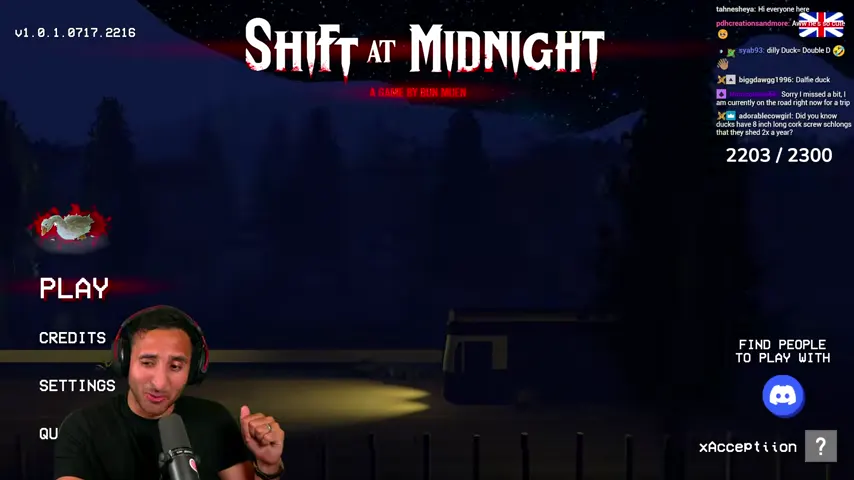
Open Settings before the first shift so a display or input adjustment does not have to be diagnosed while the store is active.
Check your PC in Windows
Do this comparison with the machine that will actually run the game. A store receipt, laptop family name, or sticker can omit the exact processor, active GPU, and installed memory configuration.
1. Confirm 64-bit Windows and installed RAM
Open Settings → System → About and read:
- System type: it must report a 64-bit operating system and x64-based processor.
- Processor: record the complete CPU model, including its generation and suffix.
- Installed RAM: compare the installed total with 8 GB minimum and 16 GB recommended.
- Windows edition: the official targets are Windows 10/11 at minimum and Windows 11 for the recommended tier.
Eight gigabytes is the total system memory, not memory reserved only for the game. Browsers, recording software, voice chat, launchers, and overlays consume part of it. Close unnecessary applications before deciding that a machine at the minimum tier has a game-specific memory problem.
2. Identify the GPU and graphics memory
Open Task Manager → Performance → GPU or Settings → System → Display → Advanced display → Display adapter properties. Record the exact adapter name. If Windows lists two GPUs, the low-power integrated chip and the dedicated chip are separate devices; make sure the game is assigned to the dedicated one.
For the official comparison:
- minimum reference: GeForce GTX 1050 Ti or equivalent;
- recommended reference: GeForce GTX 1660 Ti with 6 GB or equivalent.
Do not compare GPUs by memory alone. A slow integrated GPU can report a large amount of shared memory without having GTX 1050 Ti-class graphics performance. Conversely, a newer model with a different name needs a capability comparison, not a conclusion based only on its numbering.
3. Check DirectX support
Press Win + R, type dxdiag, and open the diagnostic tool. The System tab shows the installed DirectX version; the Display tab identifies the active graphics adapter, driver, display memory, and supported feature levels.
The official tiers list DirectX 11 at minimum and DirectX 12 as recommended. If Windows reports DirectX 12 but the selected GPU or driver does not expose the required capabilities reliably, update the graphics driver and recheck the Display tab instead of relying only on the single version line.
4. Check storage with installation headroom
Open File Explorer → This PC and inspect the free space on the drive where Steam installs the game. Both official tiers list 3 GB available space. Do not plan to leave exactly 3 GB free: Steam and Windows can require temporary working room for downloads, unpacking, shader data, saves, and later updates.
The 3 GB figure is the official requirement, not a guarantee that every future update will fit within an almost-full drive. If installation or patching fails, free additional space before moving to advanced troubleshooting.
5. Check the connection used for co-op
Both tiers list a broadband internet connection, and the game supports online co-op. No official minimum Mbps, latency ceiling, or packet-loss target is attached to the requirement, so this guide does not invent one.
For a cleaner co-op test:
- pause downloads, cloud backups, and high-bandwidth streams;
- use wired Ethernet when practical, or a strong and stable Wi-Fi signal;
- confirm all players are on the same current game build;
- test one host, then change the host if only one player's connection produces repeated drops;
- separate network symptoms from rendering symptoms—rubber-banding and disconnects are not fixed by lowering graphics quality.
Single-player removes live co-op traffic from the session, which makes it a useful comparison. If the same visual stutter occurs offline, investigate the PC and settings before blaming the network.
Laptop graphics: the most common comparison mistake
Laptop model names can hide large differences in power limits, cooling, and which GPU is currently selected. A laptop may satisfy the CPU and RAM lines but still launch the game on integrated graphics to save power.
Use this check before deciding an upgrade is required:
- plug the laptop into power and disable battery-saving mode for the test;
- confirm the exact dedicated GPU in Task Manager;
- open Windows Graphics settings, add or locate the game, and select the high-performance GPU;
- update the driver from the GPU vendor's installed utility or official driver package;
- restart the game and verify in Task Manager that the dedicated GPU is carrying the 3D workload;
- watch temperatures and clock behavior if performance falls only after several minutes.
Shared GPU memory is not the same as dedicated VRAM. The recommended line explicitly names a GTX 1660 Ti with 6 GB, so a laptop reporting 6 GB of shared memory does not automatically match that tier.
Settings and image-quality test
Test a repeatable scene instead of changing several options at once. The store interior is useful because it combines lighting, shelves, character detail, text, and the checkout interface. After each change, return to the same area and check whether input, text clarity, and motion have improved.
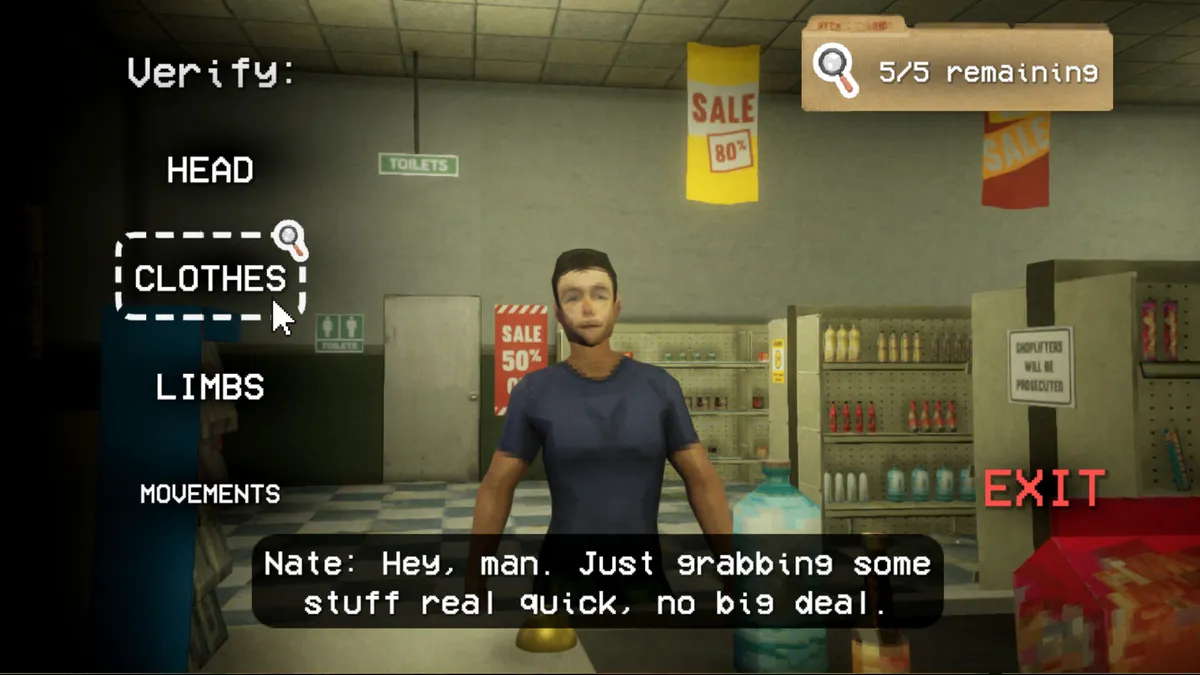
Use a scene with both 3D detail and interface text: a setting that gains performance but makes investigation text unreadable is not a good trade for this game.
Use this controlled sequence:
- note the current display mode, resolution, and any quality options exposed by the installed build;
- change one option at a time;
- replay the same short store route and customer interaction;
- keep the change only if it improves the problem without making IDs, database fields, prompts, or distant threats hard to read;
- restore the original value before testing the next option if there is no clear benefit.
The exact option labels can change between builds. Use the labels visible in your current Settings menu rather than following an old screenshot as though it were a permanent list.
Test dark-scene visibility separately
Shift At Midnight regularly moves from a bright store to dark exterior routes. A display can look fine at the register but lose crucial shapes outside. Test both conditions after changing display brightness, resolution, or any quality option the current build exposes.
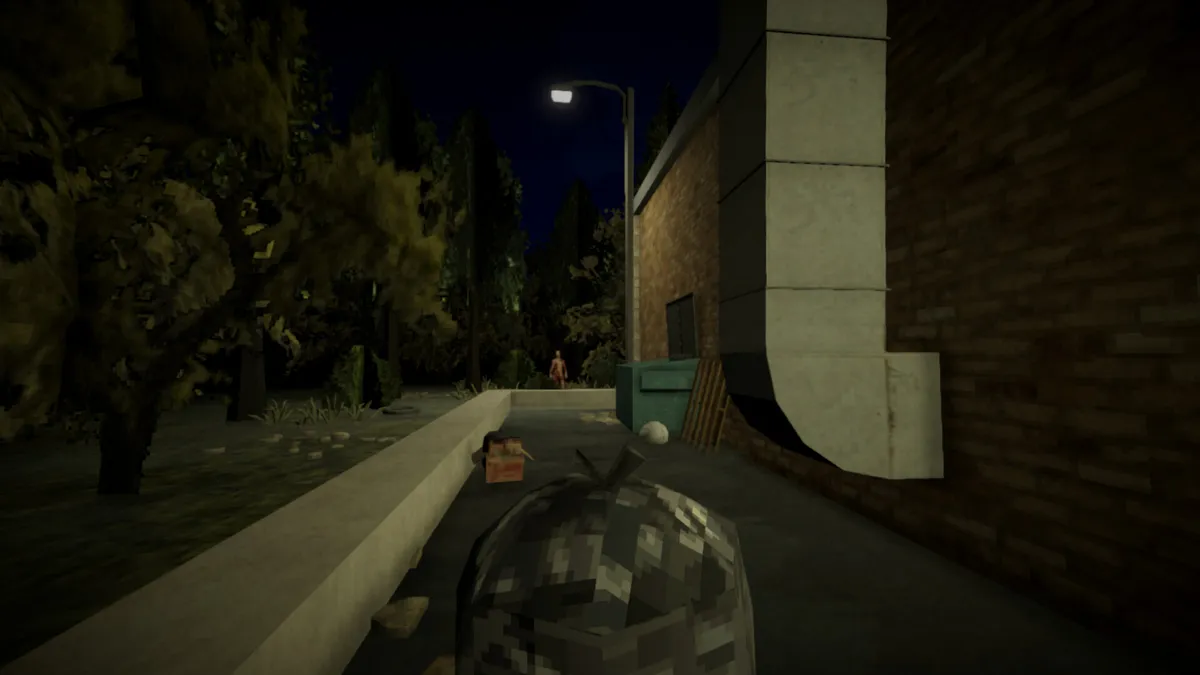
Do not solve a dark-scene problem by washing out the bright store. Recheck both areas after every display adjustment.
Test co-op under a real workload
If the problem appears only with a team, repeat a short section with the same host and then with another host. Watch whether player motion, voice communication, and local rendering fail together or separately.
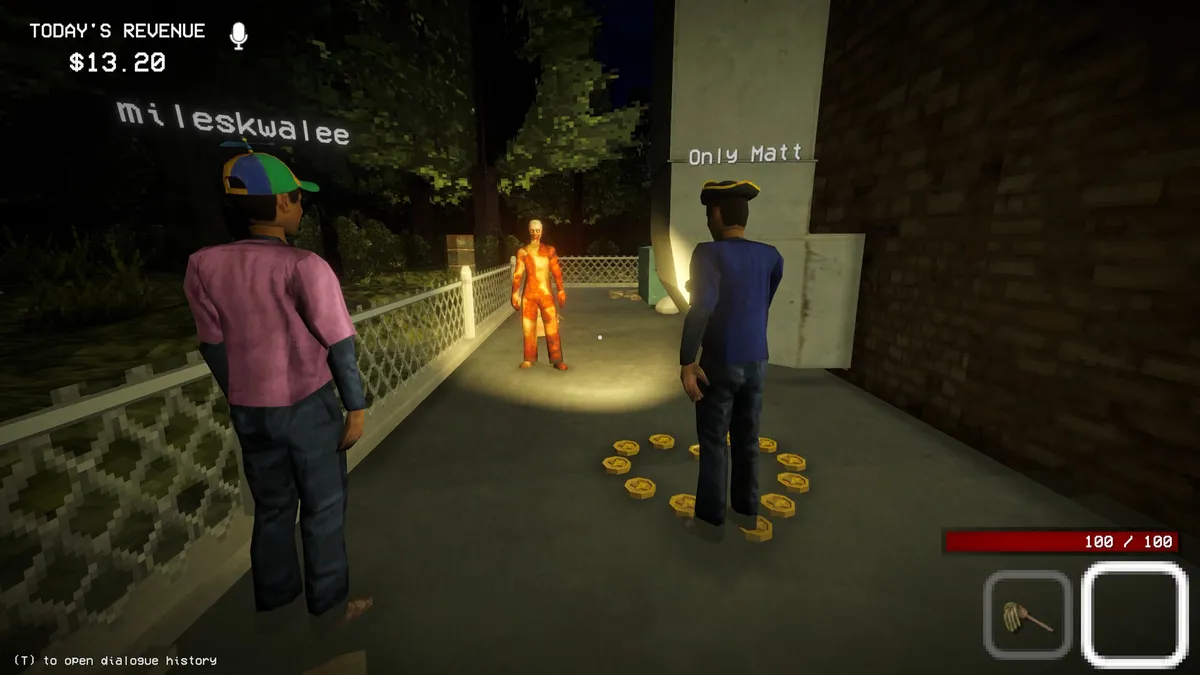
A stable local frame with delayed player movement points in a different direction from a scene where the entire image and input stutter.
Upgrade decision: start with the failed line
Do not replace a component just because the game had one slow scene. First compare each official requirement, reproduce the problem, and identify the bottleneck.
| Finding | First action | Upgrade signal |
|---|---|---|
| 32-bit Windows or non-x64 processor | Move to a supported 64-bit Windows platform | Hard requirement is not met |
| Less than 8 GB RAM | Close background apps for diagnosis | Upgrade is needed to meet the official minimum |
| 8 GB RAM with heavy memory pressure | Test with only Steam and the game open | 16 GB is the official recommended target |
| GPU below GTX 1050 Ti class | Confirm the game is not using integrated graphics | Upgrade if the dedicated GPU itself remains below minimum |
| GPU between minimum and GTX 1660 Ti 6 GB class | Test the same scene one setting at a time | Consider an upgrade only after confirming a graphics bottleneck |
| DirectX or feature-level problem | Update Windows and the GPU driver, then rerun dxdiag | Upgrade if the hardware cannot provide the required support |
| Less than 3 GB free | Free additional installation and update space | Storage capacity is the blocker, not rendering power |
| Co-op-only disconnects or rubber-banding | Stop background traffic and change host | Improve the network path before replacing graphics hardware |
| Slowdown only after the laptop heats up | Retest plugged in with clear vents | Investigate cooling and power behavior before buying parts |
CPU names also need care. The official list names i5-10400F at minimum and i5-10400 / Ryzen 7 5800X in the recommended line. Because those two recommended processors are not identical in overall capability, treat the published line as the official reference—not as a precise benchmark equation. Compare your exact CPU with the named models using architecture, core/thread count, clock behavior, and independent benchmark data, then let an actual repeatable in-game test settle borderline cases.
If the PC meets the list but the game still fails
Requirements answer “is this hardware in the published range?” They do not diagnose a corrupt file, old driver, wrong GPU assignment, overlay conflict, full drive, firewall problem, or version mismatch.
Use this reversible order:
- restart Steam and Windows;
- verify the game files;
- install current Windows and graphics-driver updates;
- confirm the high-performance GPU is selected;
- close overlays, recorders, browsers, and background downloads for one clean test;
- reproduce the problem in single-player and then co-op;
- record the exact screen, action, and error message before changing anything else.
Continue with the troubleshooting guide for launch, display, connection, save, and update checks. If the machine is still being evaluated for purchase, review the price and buying guide. Once the game runs correctly, the beginner guide covers the first complete shift routine.
Bottom line
The non-negotiable entry check is 64-bit Windows 10/11, an i5-10400F-class CPU, 8 GB RAM, a GTX 1050 Ti-class GPU, DirectX 11, broadband internet, and 3 GB available space. The official recommended tier raises memory to 16 GB, graphics to a GTX 1660 Ti 6 GB class, DirectX to Version 12, and the operating system to 64-bit Windows 11. Use those as compatibility tiers, test the same bright, dark, and co-op scenes after each change, and do not attach an FPS guarantee that the official requirements do not provide.
Keep going